Settings
Configure the dashboard page, branding, colors, pagination, AI, and notifications from WooCommerce → StoreSuite.
Your team works in the frontend dashboard; you configure it from WooCommerce → StoreSuite in wp-admin. The settings app has six tabs - General, Appearance, Pagination, AI, Notifications, and Changelog - each with its own save button. A Documentation button and a Support Me button sit in the top-right corner.
General
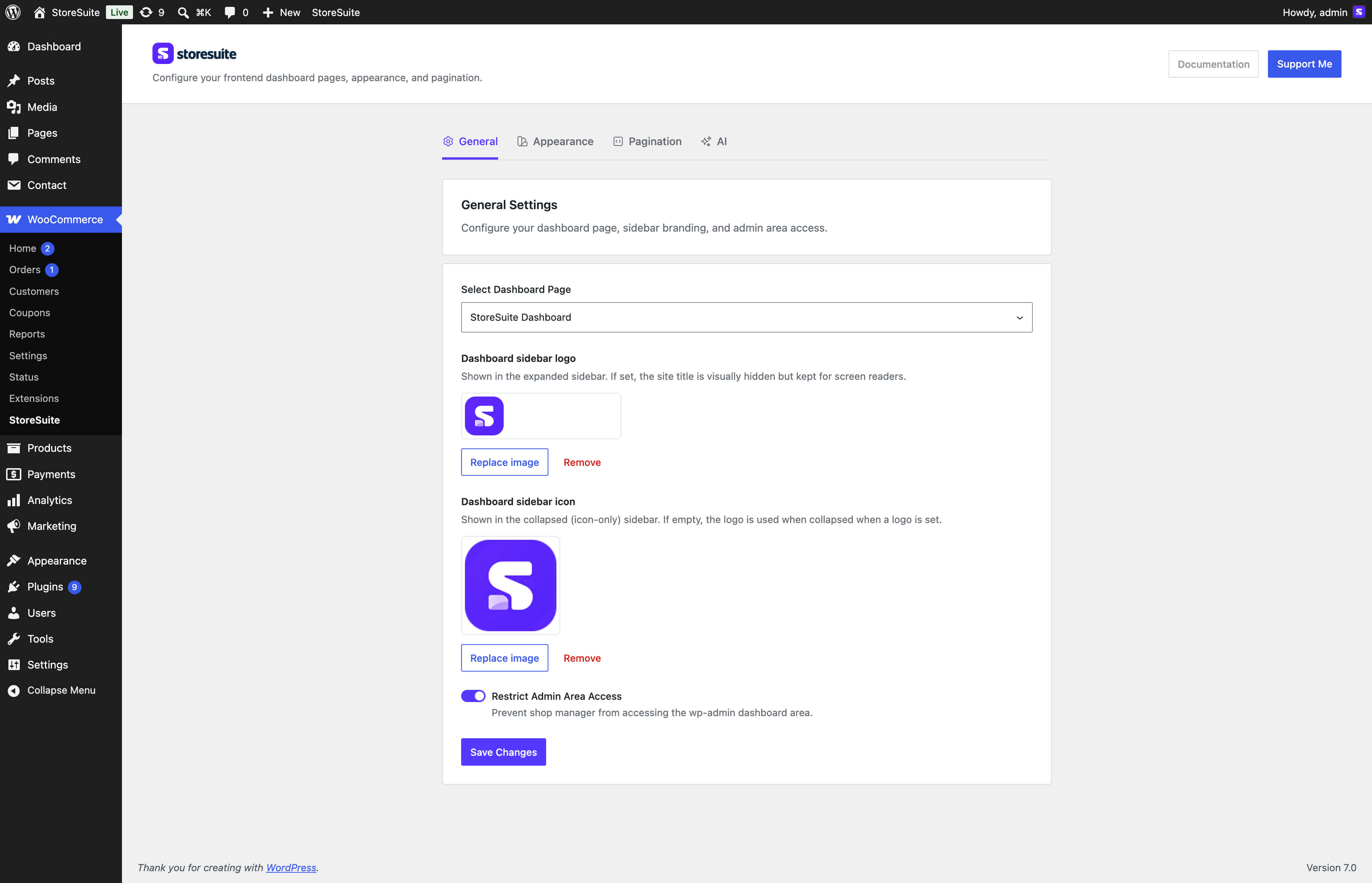
- Select Dashboard Page - which page hosts the dashboard. StoreSuite creates and selects one on activation; point it elsewhere any time.
- Dashboard sidebar logo - shown in the expanded sidebar. When set, the site title is visually hidden but kept for screen readers.
- Dashboard sidebar icon - shown when the sidebar is collapsed to its icon-only rail. Leave it empty to reuse the logo.
- Light mode / Dark mode image slots - both the logo and the icon carry a switch above the image, so you can upload a light-colored version for the dark sidebar. Leave the dark slot empty and the regular image is used in both themes. See Dark mode.
- Restrict Admin Area Access - prevents shop managers from reaching wp-admin at all; they land on the frontend dashboard instead. The WP Dashboard sidebar link hides itself for non-administrators when this is on.
Appearance
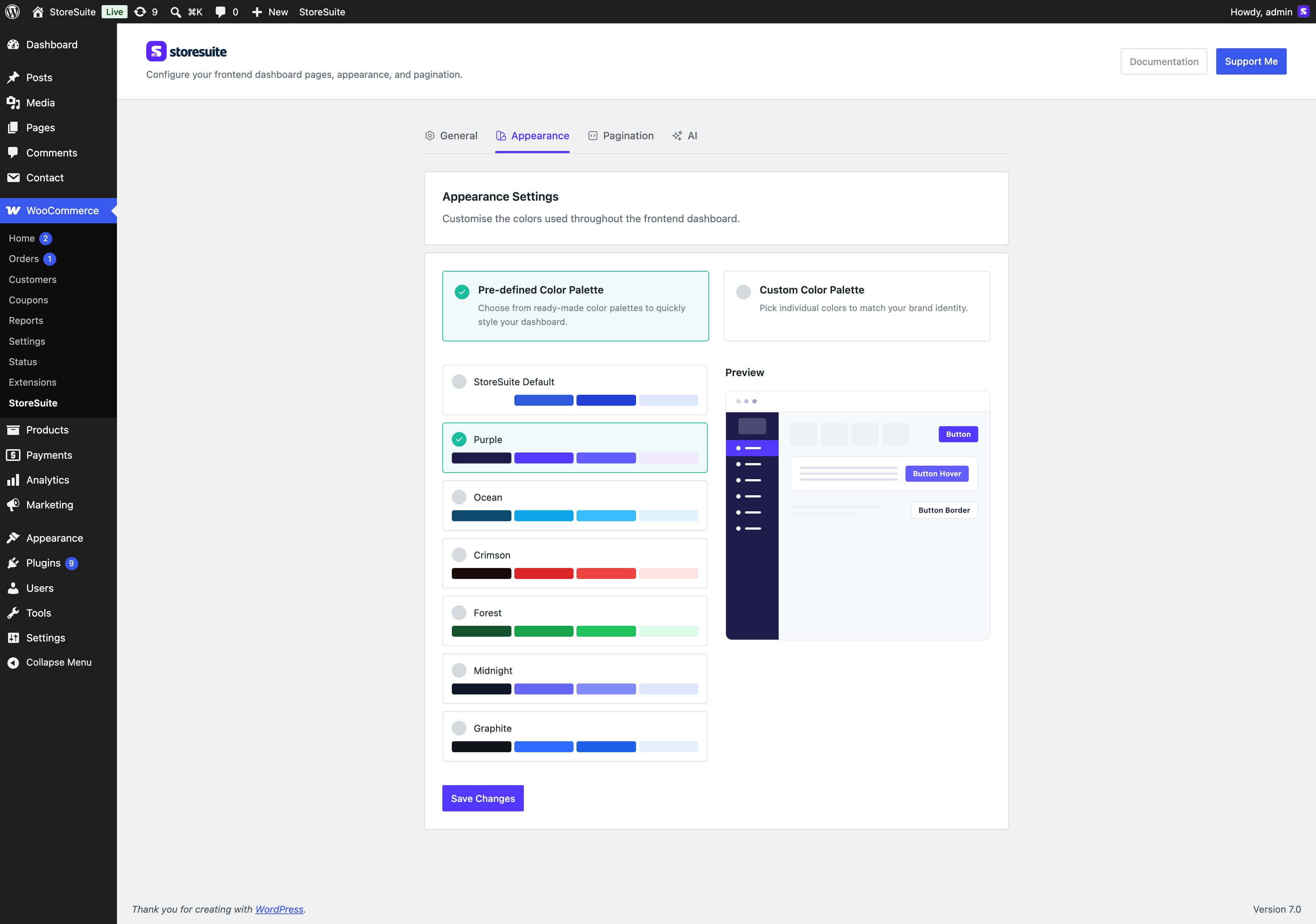
The tab has two sub-tabs, Light Mode and Dark Mode, with a live preview panel beside them.
Light Mode
Two ways to go:
- Pre-defined palette - StoreSuite Default, Purple, Ocean, Crimson, Forest, Midnight, or Graphite.
- Custom palette - individual pickers for button text/background and their hover states, normal/title/lite text, icons, the sidebar (menu text, background, active and hover states, border), general borders, and lite backgrounds.
Saving recolors the whole frontend dashboard immediately.
Dark Mode
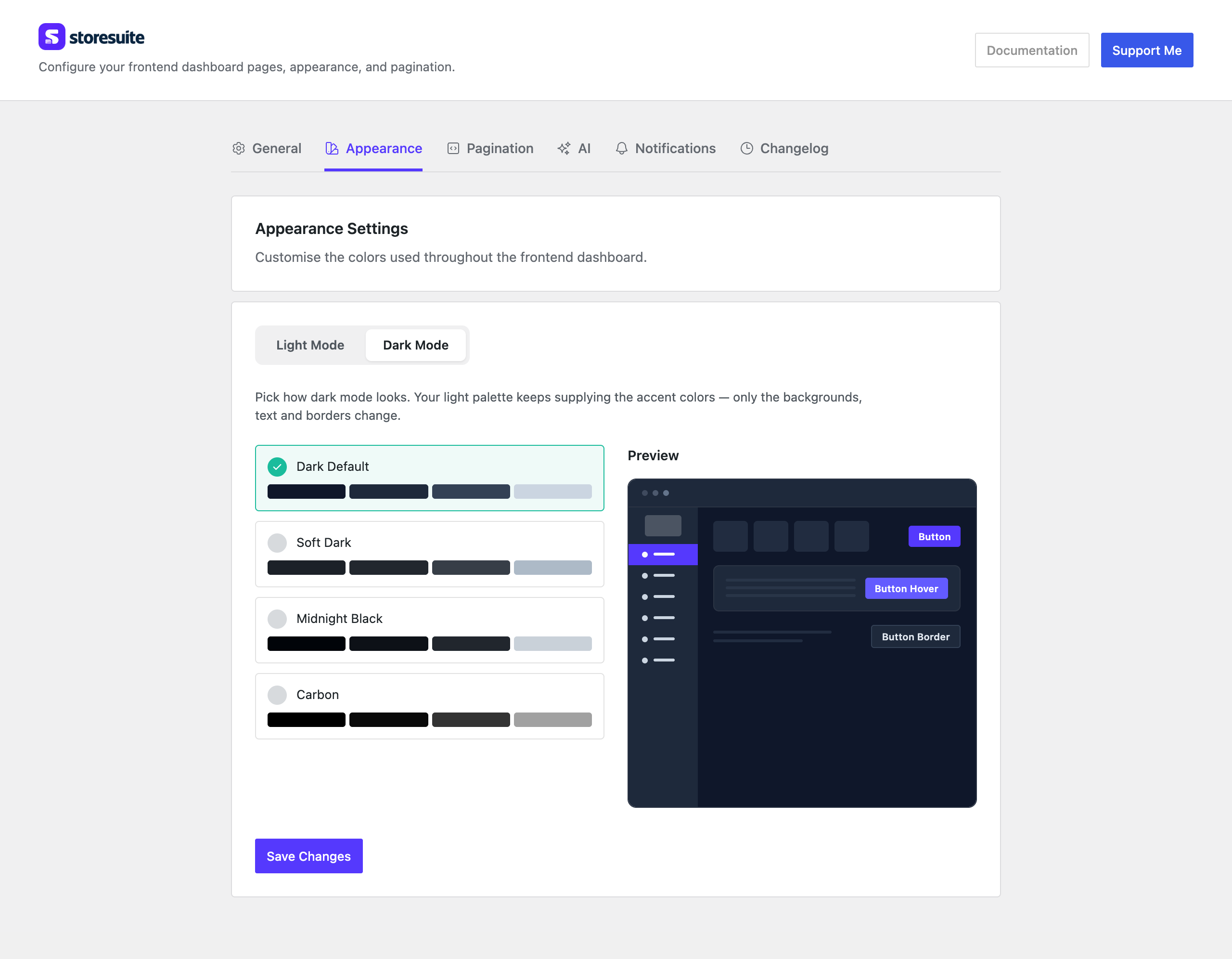
Anyone can switch themselves to dark with the sun/moon button in the dashboard header; this sub-tab decides which dark look your store uses - Dark Default, Soft Dark, Midnight Black, or Carbon. There is no custom-color option here: the dark palettes set the neutrals only, and your accent color carries over from Light Mode. Full details in Dark mode.
Pagination
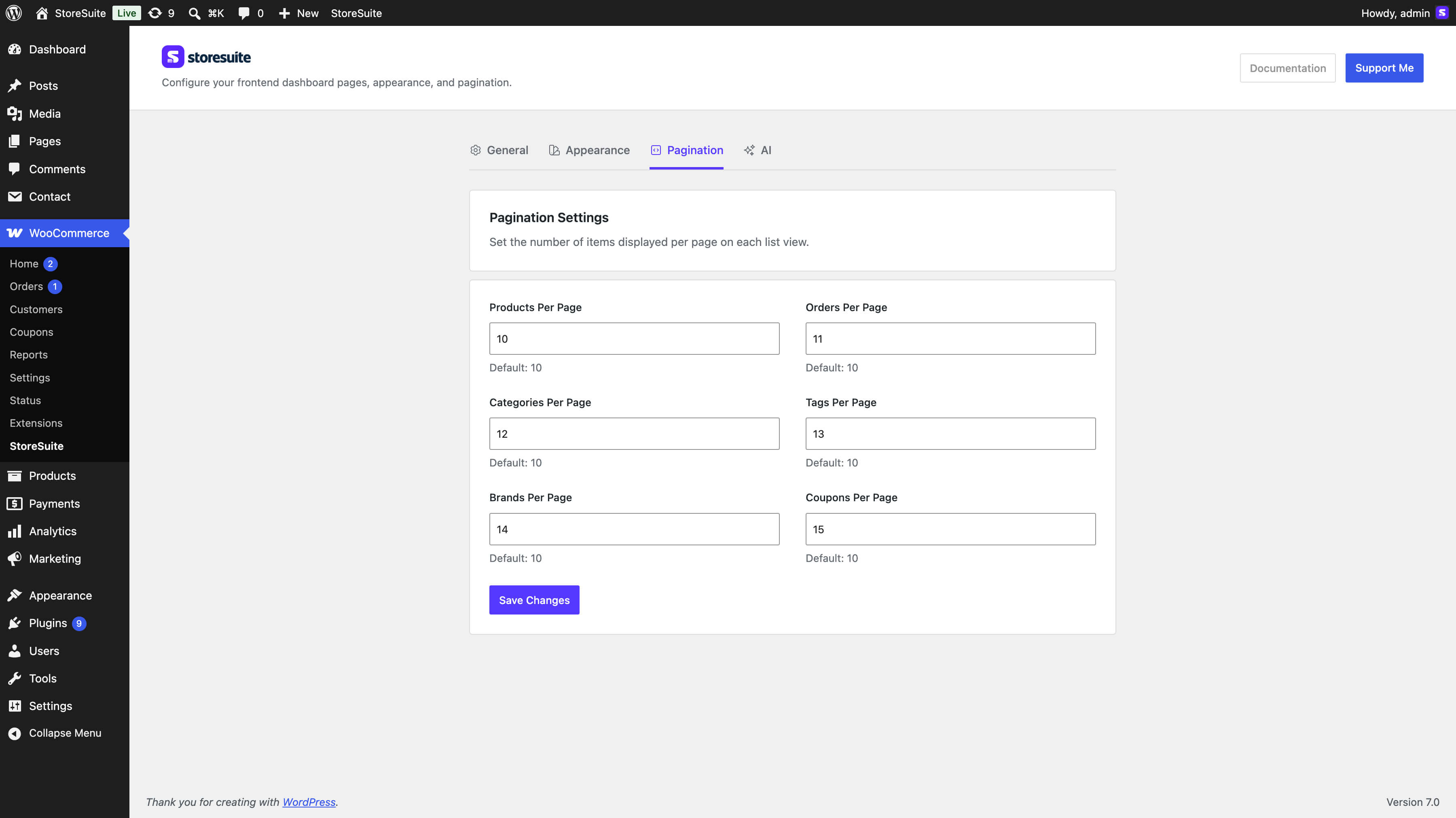
Items per page for Products, Orders, Categories, Tags, Brands, and Coupons. Each defaults to 10; leave a field blank to keep the default.
AI
Per-field AI toggles and custom system instructions - documented in AI Studio.
Notifications
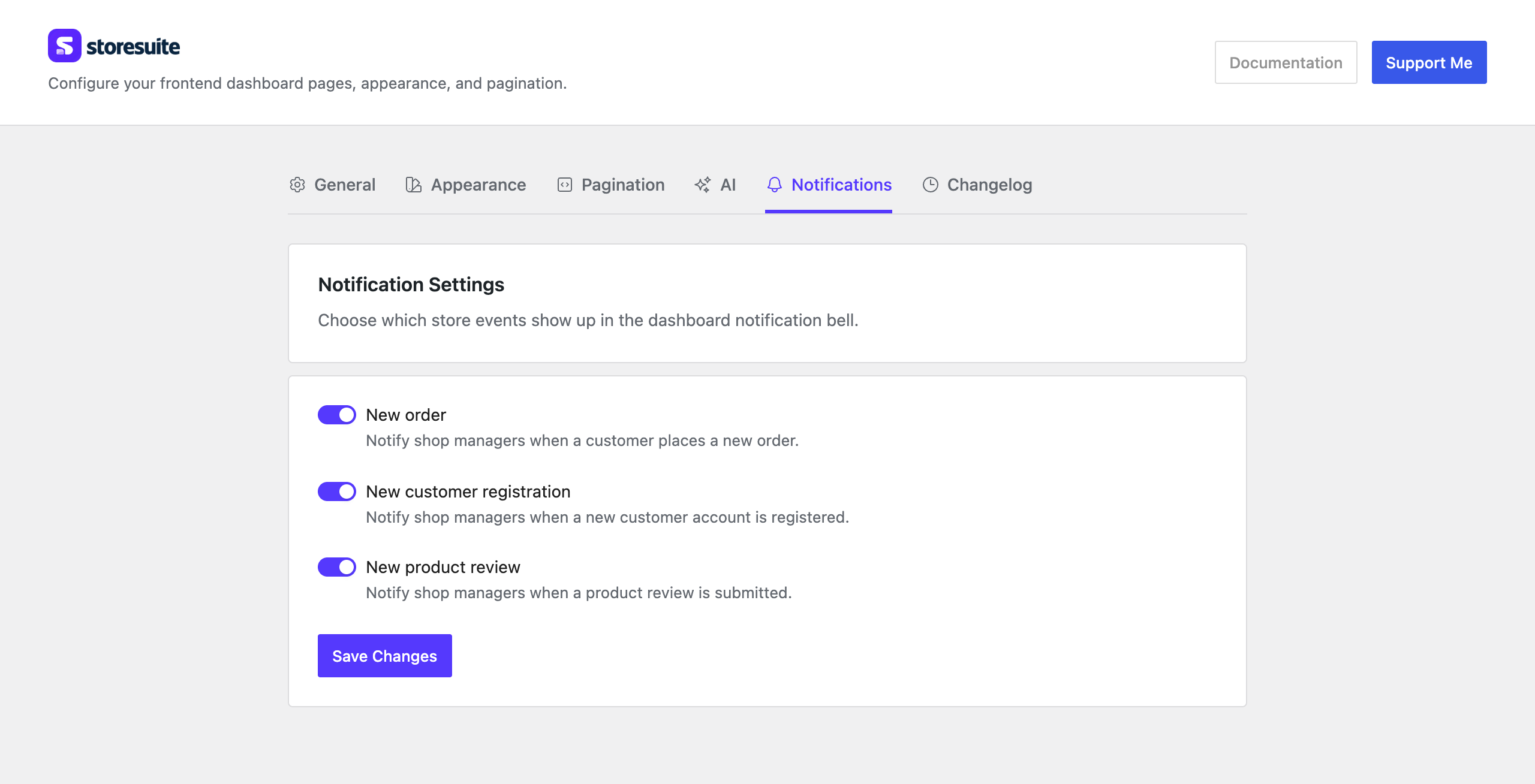
Which store events the dashboard bell reports: New order, New customer registration, and New product review, all on by default. Switching one off stops it being recorded from that moment on. See Notifications.
Changelog
The plugin’s release history, paginated with a Load more button, so you can see what changed without leaving the settings screen.
Tip
Setting up for a client? Upload their logo, pick a matching palette, and turn on Restrict Admin Area Access - they get a branded store manager that never shows them the WordPress admin.