Product CSV Import
Bring products in from a CSV file with a four-step wizard - upload, map columns, import, review.
The Import button in the Products toolbar opens a wizard that turns a CSV file into products. It is the fastest way to move a catalog over from another store, load a supplier’s list, or update prices and stock in bulk.
The wizard runs in four steps - Upload CSV file → Column mapping → Import → Done! - with a progress bar across the top that ticks off each finished step.
Step 1 - Upload your file
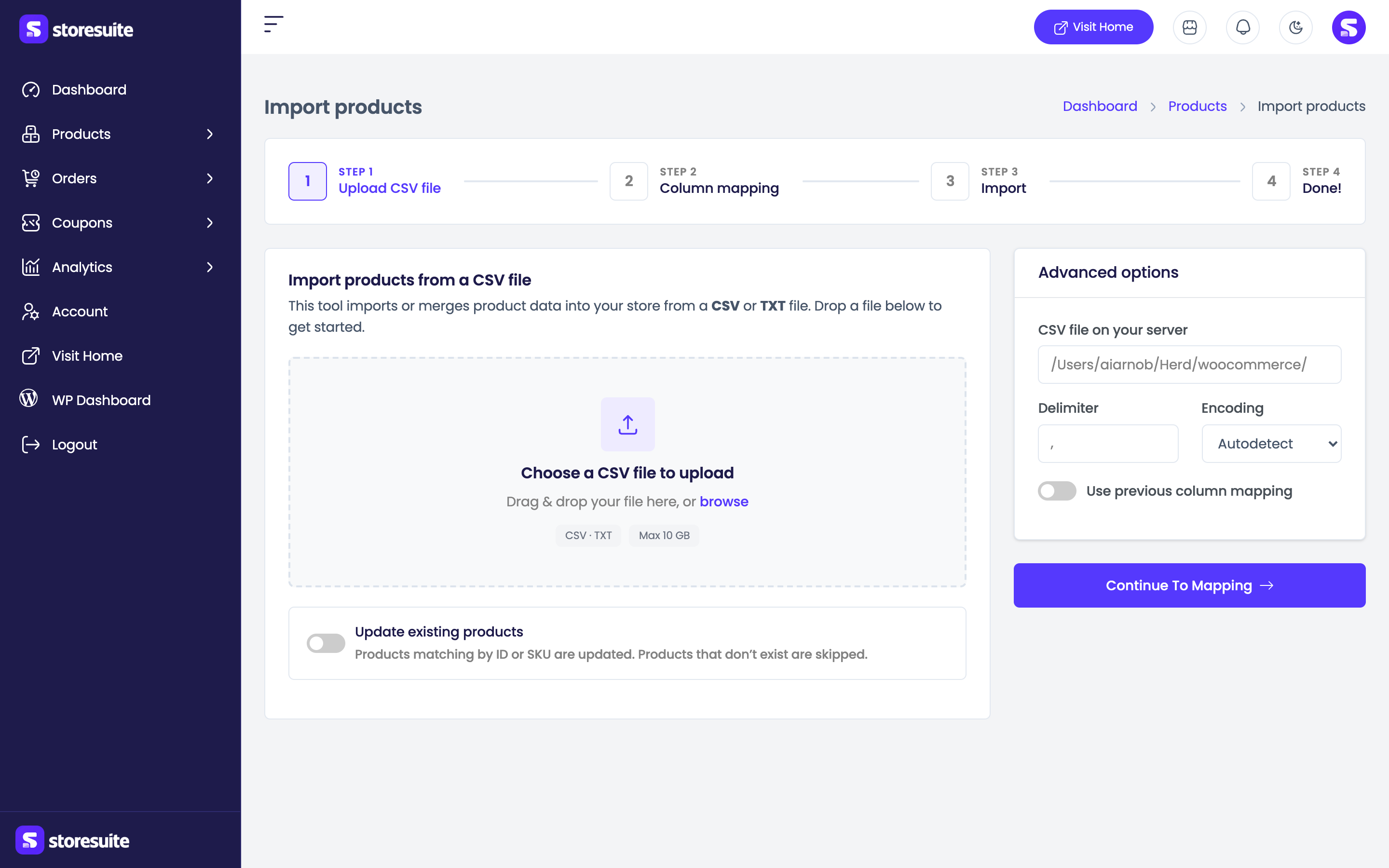
Drop a CSV onto the upload area or click browse to pick one. The area lists the accepted formats (CSV and TXT) and the largest file your server accepts.
Update existing products
One switch sits under the upload box, and it is worth understanding before you continue. With Update existing products on, any row that matches a product you already have - by ID or SKU - updates that product instead of creating a second copy. Leave it off and every row is imported as a brand new product.
Turn it on when you are refreshing prices or stock for an existing catalog; leave it off when you are adding products you do not have yet.
Duplicates
Importing a supplier price list over your live catalog with this switch off is the classic way to end up with every product twice. If the file describes products you already sell, turn it on.
Advanced options
Most files import without touching these, so the section stays collapsed until you open it:
- CSV file on your server - import a file already sitting on the server instead of uploading, for files too large to push through a browser.
- Delimiter - the character between columns. Commas are assumed; change it for semicolon- or tab-separated files.
- Encoding - Autodetect by default. Set it manually if accented characters come through garbled.
- Use previous column mapping - reuse the mapping from an earlier import, so a file in the same format goes straight through.
Continue to mapping moves on.
Step 2 - Map columns to product fields
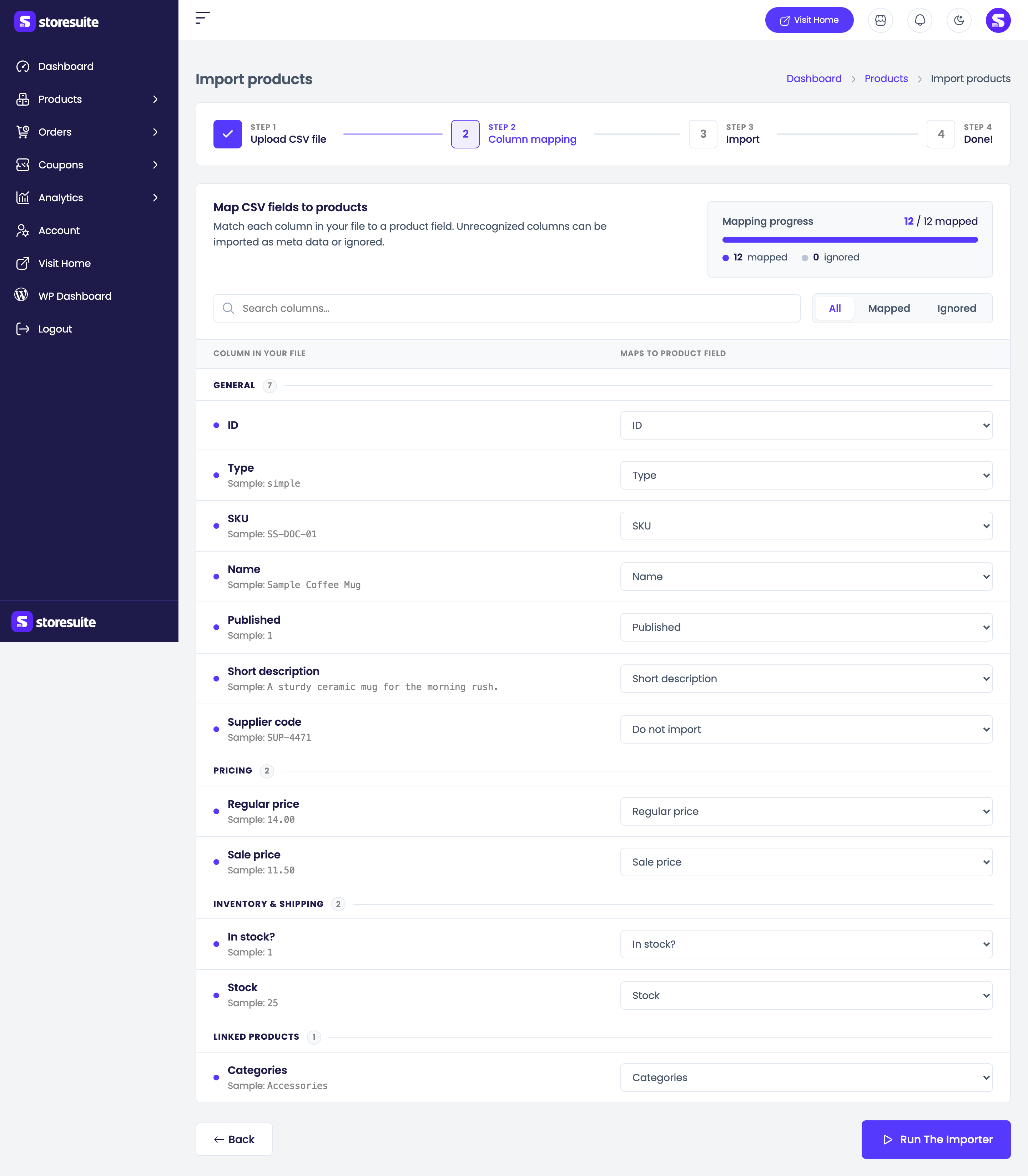
Map CSV fields to products lists one row per column in your file:
| What you see | What it means |
|---|---|
| Column in your file | The heading from your CSV - Name, Regular price, Stock |
| Sample | A real value from the file, so you can confirm the column |
| Maps to product field | The StoreSuite field it imports into - change it with the dropdown |
StoreSuite guesses a mapping for every column, and the guess is usually right for a standard WooCommerce export. Columns are grouped so wide files stay readable: General, Pricing, Inventory & shipping, Linked products, External & downloads, Attributes, Meta data, and Unrecognized columns.
A Mapping progress bar counts how many columns are mapped and how many are ignored, the All / Mapped / Ignored filters narrow the table, and a search box finds one column in a long file. Jumping to Ignored is the quickest way to spot anything that slipped through unmatched.
Set a column to Do not import to skip it - the right answer for internal notes or supplier codes. Nothing forces you to map every column.
Run the importer starts the import; Back returns to the upload step.
Step 3 - The import runs
Importing products shows a progress bar while StoreSuite works through the file in batches.
Keep the page open
Closing the tab or navigating away stops the import partway through, leaving some rows imported and the rest not.
Step 4 - Review the result
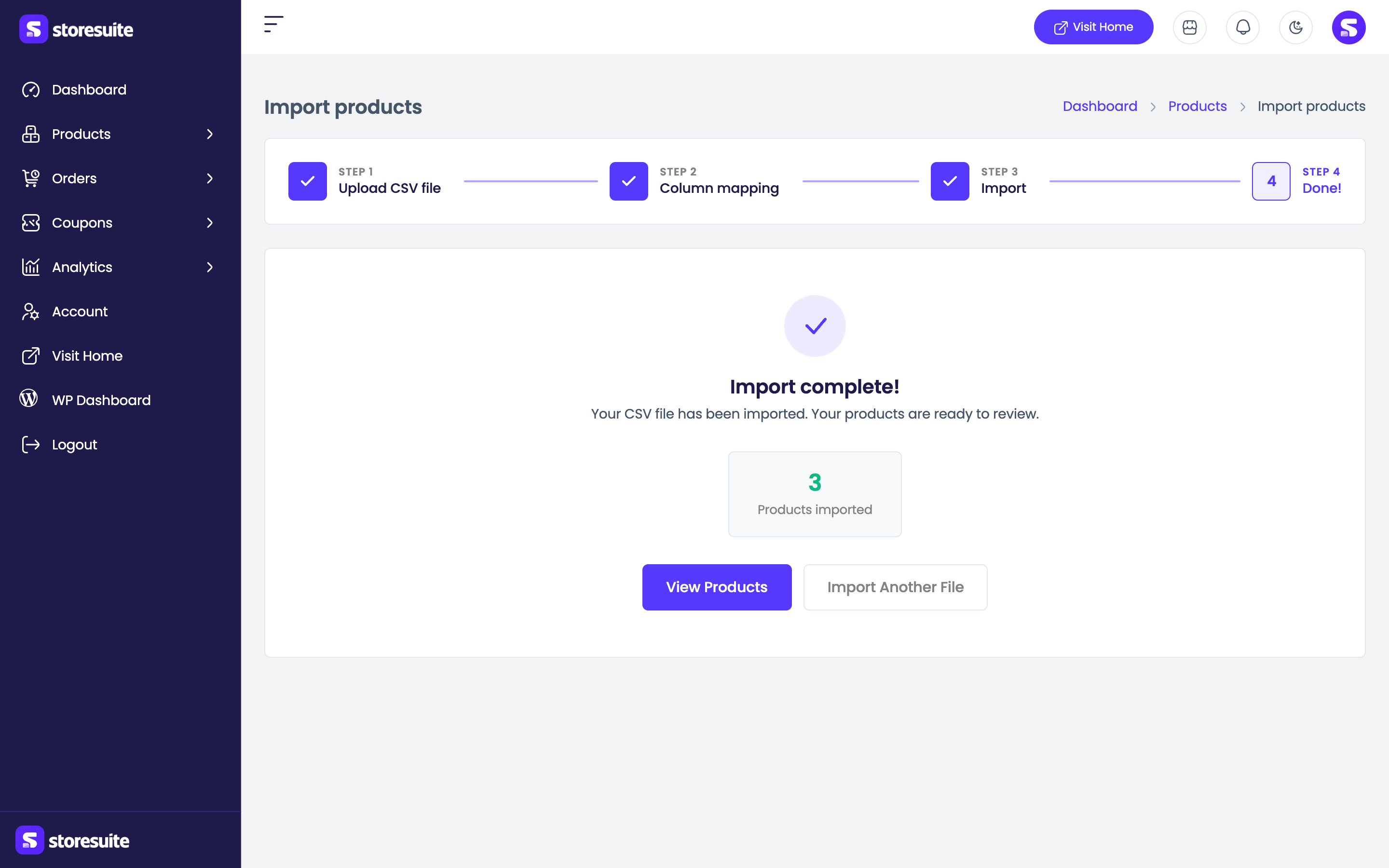
Import complete! summarizes what happened. You only get a tile for the things that actually occurred, so a clean import stays uncluttered:
| Tile | Meaning |
|---|---|
| Products imported | New products created |
| Variations imported | Variations created for variable products |
| Products updated | Existing products changed (only with Update existing products on) |
| Products skipped | Rows deliberately passed over |
| Products failed | Rows that could not be imported |
If some rows had trouble, a View import log button appears with a table of every problem row - the row number and the reason it failed - so you can fix those lines and import just them again. View Products opens the catalog and Import Another File restarts the wizard.
Tips
Test with five rows first: if the mapping is right for those, it is right for the whole file. Give every product a SKU if you plan to update by import later. And to bulk-change prices, export your products, edit the file, and import it back with Update existing products on - the columns already match.