Orders
Review, search, filter, create, edit, and refund WooCommerce orders from the frontend - HPOS compatible.
Orders puts every order in your store on one screen: review new orders, change statuses, issue refunds, add notes, and create orders by hand for phone or in-person sales. StoreSuite declares compatibility with WooCommerce High-Performance Order Storage (HPOS), so it works on modern order tables too.
The orders list
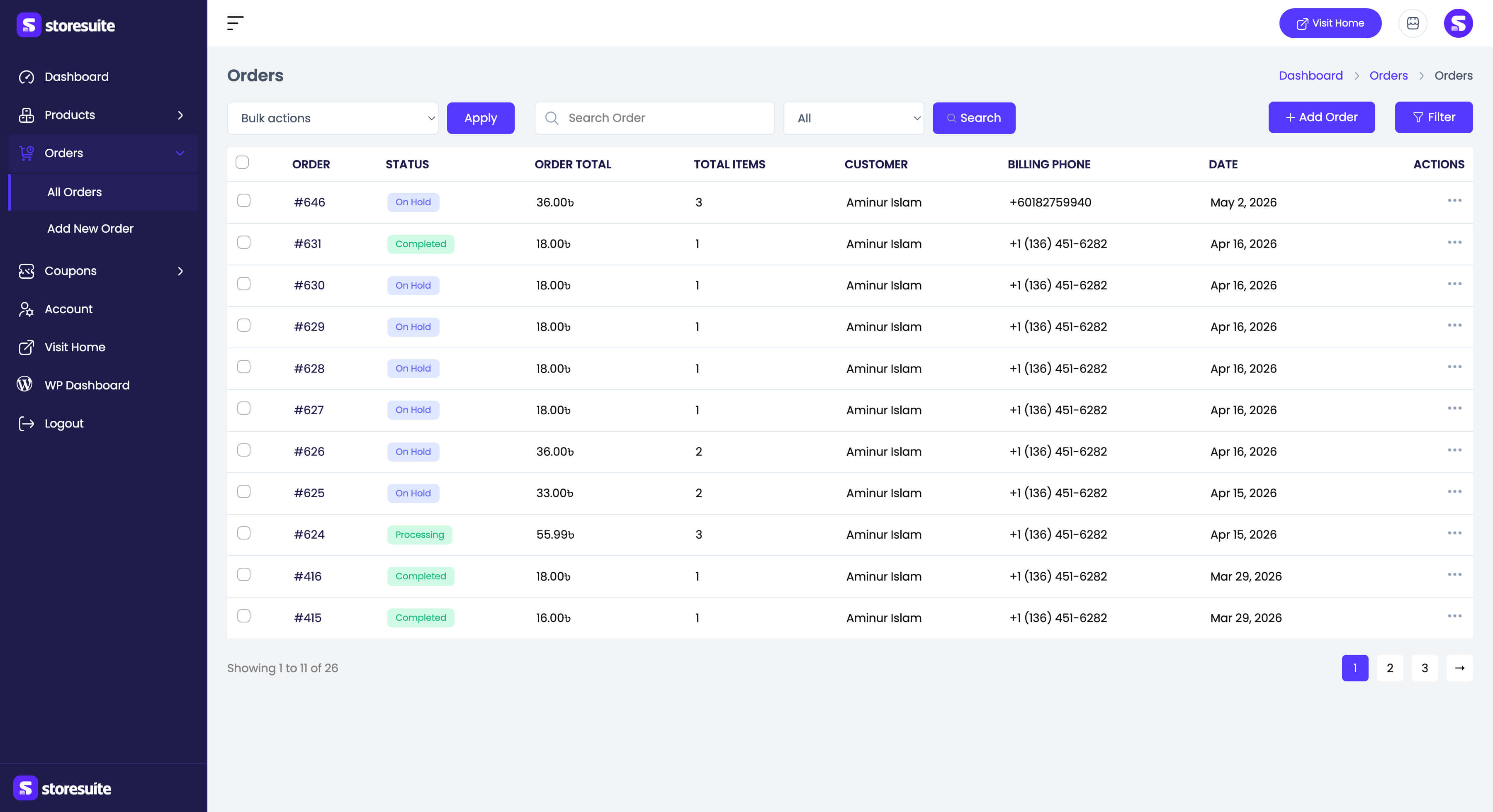
| Column | What it tells you |
|---|---|
| Order | The order number - click it to open the order |
| Status | A colored badge: on hold, processing, completed, refunded… |
| Order Total | The order value; refunded orders show the original struck through |
| Total Items | How many items the customer bought |
| Customer | Who placed the order (guests show without a name) |
| Billing Phone | The billing phone, or N/A |
| Date | When the order came in |
Search
The search box has a scope dropdown next to it: Order ID, Customer Email, Customers, Products, or All. Searching by Products finds every order containing a given product - useful when a supplier issue hits.
Filters
The Filter button opens a panel with:
- Order Status
- Registered Customer (searchable)
- Sales Channel - where the order originated
- Date - narrow to a specific month
Apply Filters runs them; Reset clears them.
Bulk actions
Tick orders and apply: Change status to processing, on-hold, completed, cancelled, or Move to Trash.
Viewing an order
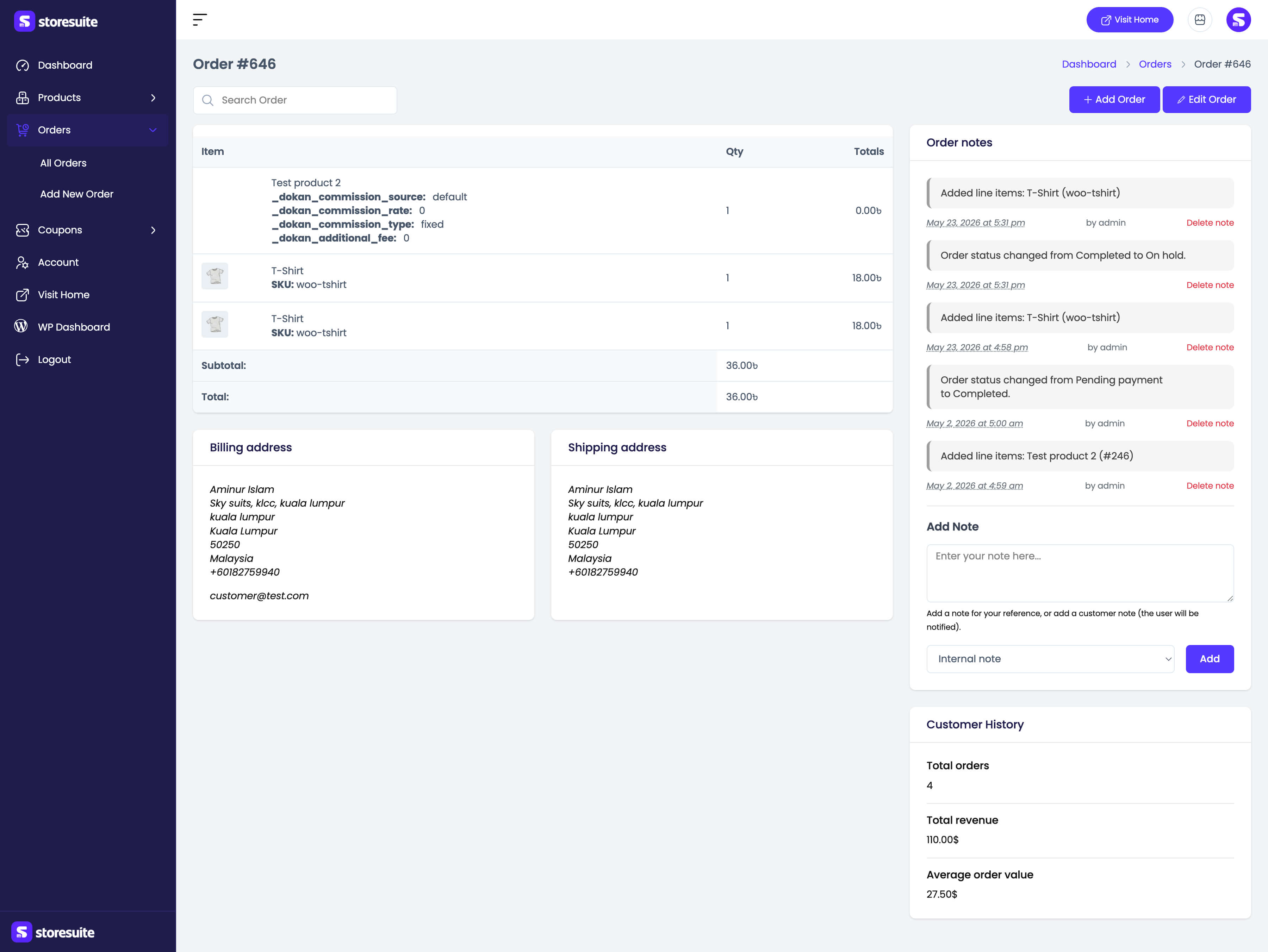
The details view is read-only and shows:
- Items - photo, name, SKU, quantity, and line totals, followed by subtotal, refunds, applied coupons, and the final total.
- Billing and shipping addresses, including email, phone, payment method, and any customer-provided note.
- Order attribution - origin, source type, campaign, source, medium, and more, when WooCommerce recorded it.
- Order notes - the automatic history of status changes, refunds, and edits. Add your own internal note, or a note to customer which emails them. Notes can be deleted.
- Customer History - that customer’s total orders, total revenue, and average order value.
Creating an order
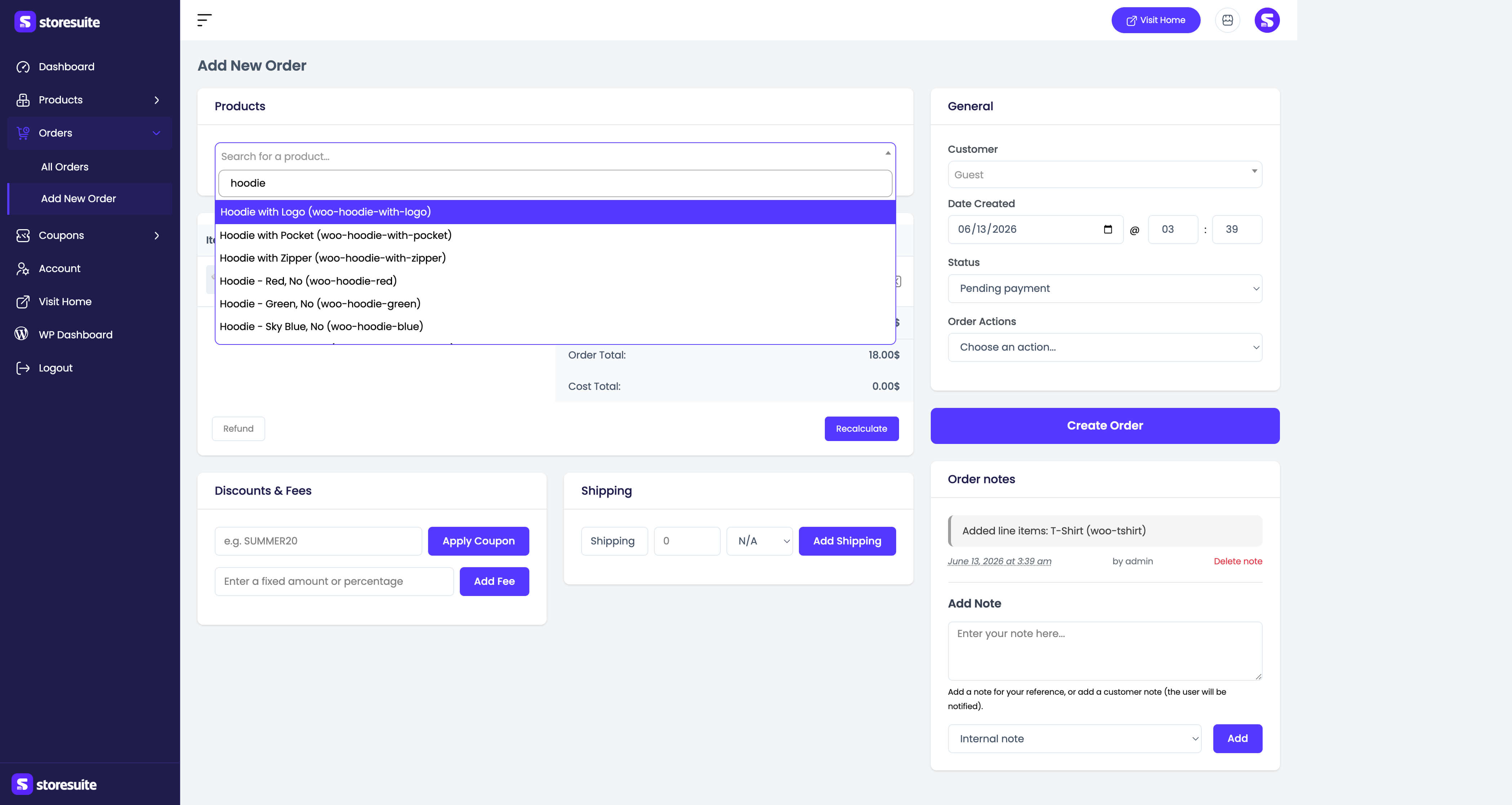
Click Add Order and build it yourself:
- Search products in Search for a product…, set quantities, and click Add To Order.
- Pick a registered customer or leave it as a guest.
- Set the date created (orders default to now; backdating is allowed).
- Choose a status - typically Pending payment or Processing.
- Click Create Order.
Invoices and packing slips
If you run a PDF invoice plugin, its documents appear inside StoreSuite - there is no trip to wp-admin to print a packing slip. StoreSuite detects these automatically, with nothing to configure on its side:
- PDF Invoices & Packing Slips for WooCommerce - Invoice and Packing Slip.
- WebToffee Print Invoices, Packing Slips, Delivery Notes & Shipping Labels - Invoice, Packing Slip, Delivery Note, Shipping Label, and Dispatch Label.
Set the documents you want up in that plugin’s own settings, and they show up in two places: in the orders list, under View and Edit in a row’s ⋯ menu, and on the order details page, in a Documents card just above Order notes. If both plugins are active, you see both sets.
Each action carries an icon - a printer opens the browser print dialog right away without leaving the order, and a download arrow saves the PDF.
Tip
Fulfilling a batch? Work down the orders list and print each packing slip from the ⋯ menu without opening the orders at all.
Editing an order
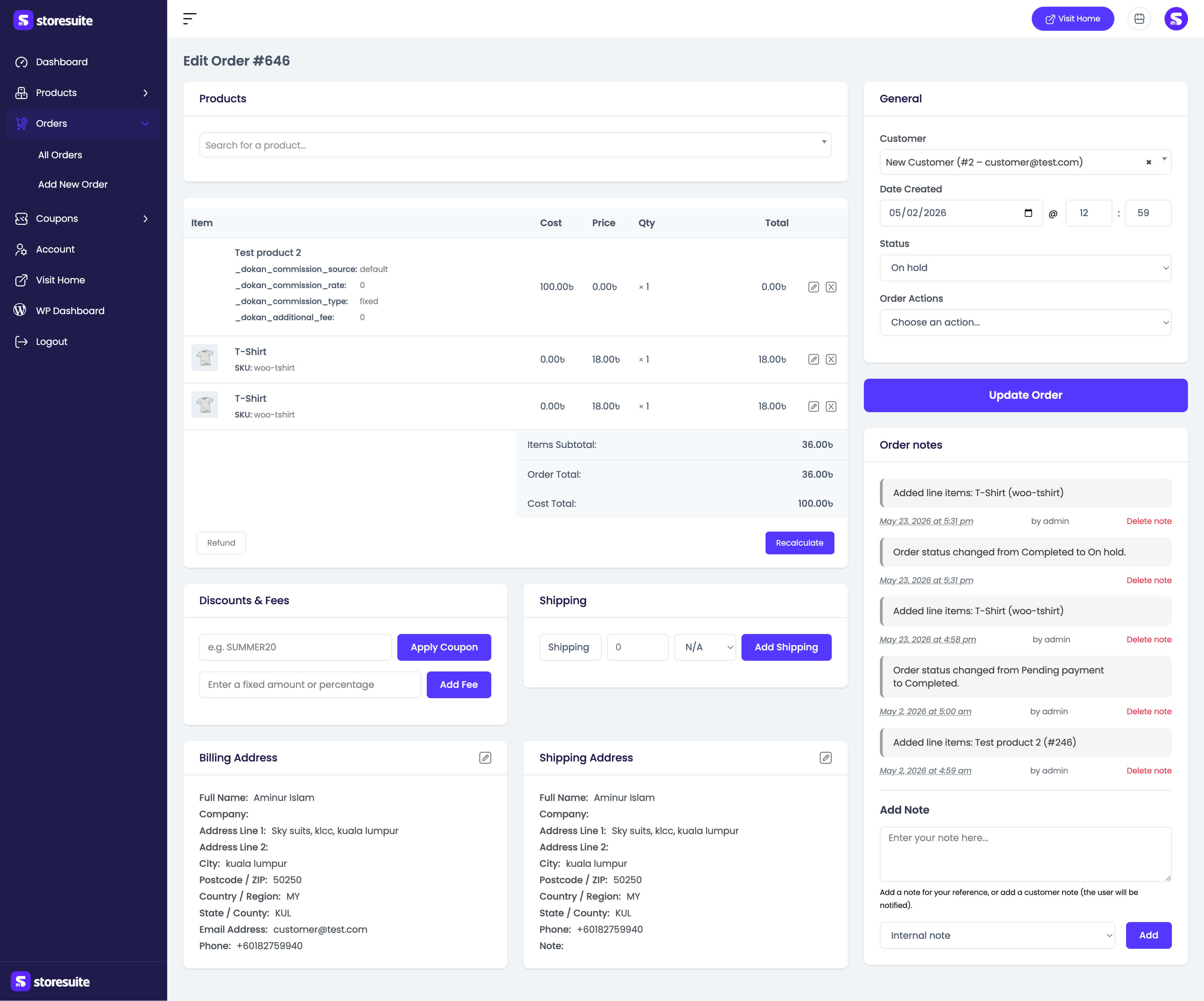
The order editor is the full workbench:
- Items - add, remove, and re-quantity line items while the order is still editable. Once it is paid, items lock to protect the record; refunds, status changes, address edits, and notes still work.
- Refunds - refund line items or an arbitrary amount, with a reason, via either the payment gateway (when it supports refunds) or manually. Each refund is logged in the order notes and reflected in the totals.
- Discounts & Fees - Apply Coupon by code, or Add Fee as a fixed amount or percentage.
- Shipping - add a shipping line with a name, one of your shipping methods (or “Other”), and a cost.
- Billing & Shipping - edit every address field, plus Payment Method and Transaction ID on the billing card.
- General - reassign the customer, change the date created, and update the status (pending payment, processing, on hold, completed, cancelled, refunded, failed).
- Order Actions - Send order details to customer, Resend new order notification, and Regenerate download permissions.
Click Update Order to save everything at once.